
It’s been over a decade since Grand Theft Auto 5 was released, and it’s only natural for players to grow bored of the same gameplay pattern. Thankfully, beyond the variety the game already offers, there are even more ways to breathe new life into it. One of the method is installing GTA 5 mods. However, the process can be tedious for both newcomers and veterans alike, and that’s where we come in. So keep reading as we guide you through all the safe ways to mod GTA 5 on PC.
Note: This GTA 5 mod guide is intended solely as an instructional article. Please be aware that using certain mods may lead to data loss or even a ban from Rockstar Games. Proceed with caution. You have been warned.
Prerequisites for GTA 5 Modding
Before we dive into the modding process, there are a few essential steps you must take to ensure the security of both your device and the game. With that in mind, follow the steps below before installing GTA 5 mods:
1. Backup Game Files
Backing up your GTA 5 game files is one of the most important steps if you want to avoid losing over 100 GB of data. To do this, you’ll first need to locate where your game is installed. If you installed Grand Theft Auto 5 on the C drive, the directory will be: C:\Program Files\Rockstar Games\Grand Theft Auto V.
We recommend copying the entire folder and moving it to an external drive or a different location on your device. If anything goes wrong, you can rename the folder to ‘GTA5_Backup’ to easily recognize it. Keep in mind that copying the files will require an additional 150 GB of storage, so make sure you have enough space beforehand.
2. Disable BattlEye Anticheat
BattlEye anti-cheat is one of the methods Rockstar Games uses to prevent players from using any third-party files. To get around it, you must disable the anti-cheat. There are two ways to turn off BattlEye anti-cheat in GTA 5. The simplest method is to delete GTA5_BE.exe from the game’s main folder.
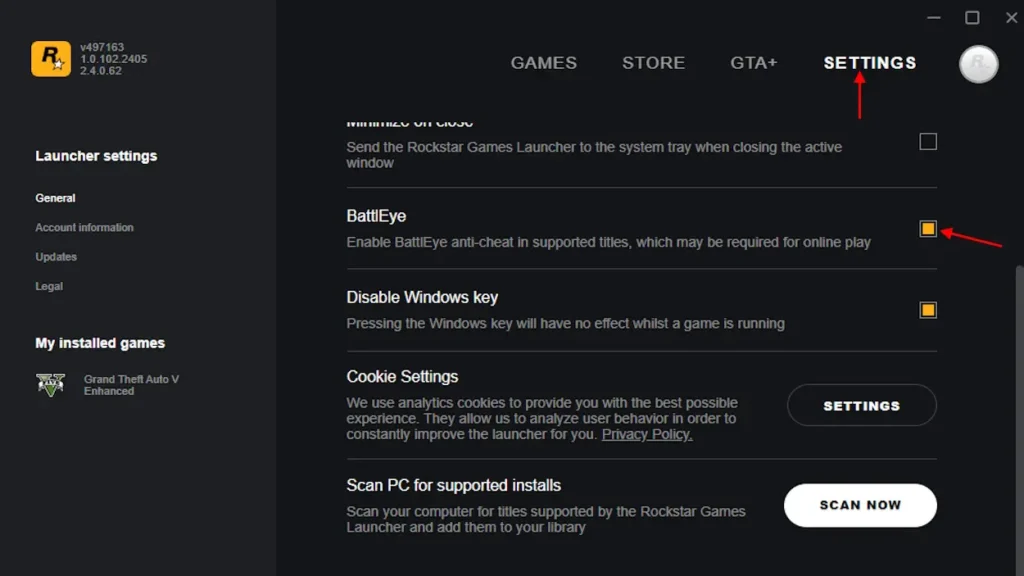
Alternatively, you can disable it through the Rockstar Launcher. First, open the Rockstar Launcher on your PC and navigate to Settings. Then, find the BattlEye option under the General tab and click the yellow checkbox to disable it.
Download and Install the Script Hook V Mod in GTA 5 PC
Now that we have our game backed up and the anti-cheat disabled, the first tool we’ll need for GTA 5 modding is Script Hook V. Search for the official Script Hook V in your browser and download the version that matches your game. Here is the latest Script Hook V download link you can use even if you’re playing GTA 5 Enhanced.
Once you’ve downloaded the ZIP file, copy args.txt, ScriptHookV.dll, xinput1_4.dll, and dinput8.dll into your GTA 5 installation directory. The args.txt file already disables the BattlEye anti-cheat, but we still recommend disabling it manually by following the steps mentioned above.
You can also copy the NativeTrainer.asi file if you’d like to use it. Keep in mind that this tool does not work on GTA Online, which helps prevent you from getting banned.
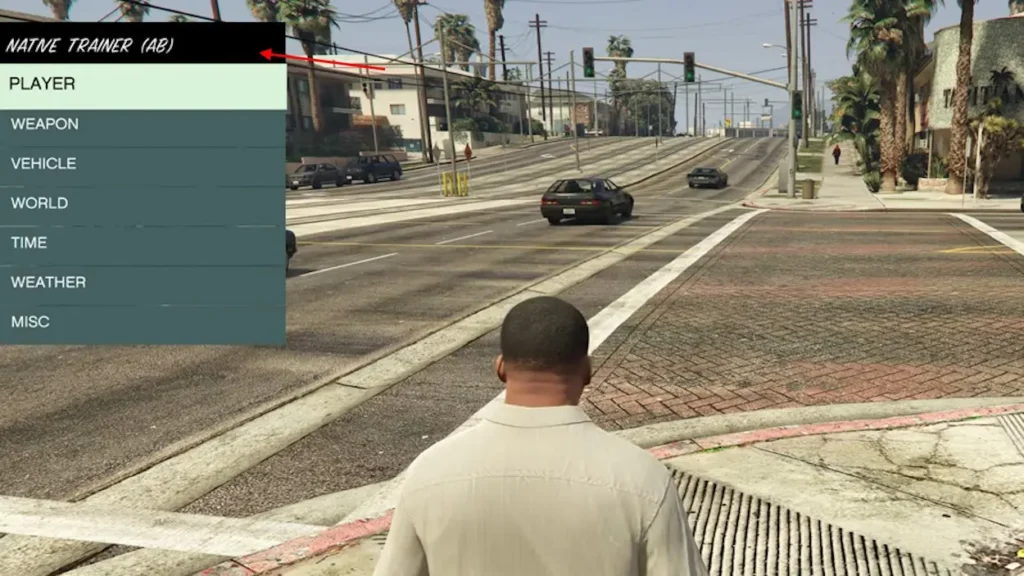
Once you have it installed, open GTA 5 and press F4 to launch the Native Trainer. Here, you’ll have the option to add money, vehicles, weapons, and more. This Native Trainer is especially useful for players who want to enjoy single-player mode with fun twists.
Grand Theft Auto 5 Graphics Mod
GTA 5 Enhanced has already introduced notable improvements to the game’s visuals. However, legacy Grand Theft Auto 5 players might still want enhanced graphics without sacrificing too much performance. That’s why you can install GTA 5 graphics mods. There are plenty of graphics mods available for Grand Theft Auto 5, such as GTA V Remake, Clouds V, and HD Low End. However, for this guide, we’ll be using the best GTA 5 graphics mod VisualV.
As of now, VisualV and most other mods can only be installed manually. To install the GTA 5 graphics mod, follow the steps below:
- Download the CodeWalker 30, dev48 version or newer, from the CodeWalker Discord server.
- Download and install OpenRPF from the official website.
- Go to your GTA V Enhanced folder, create a “mods” folder, and then create an “update” folder inside it.
- Copy the
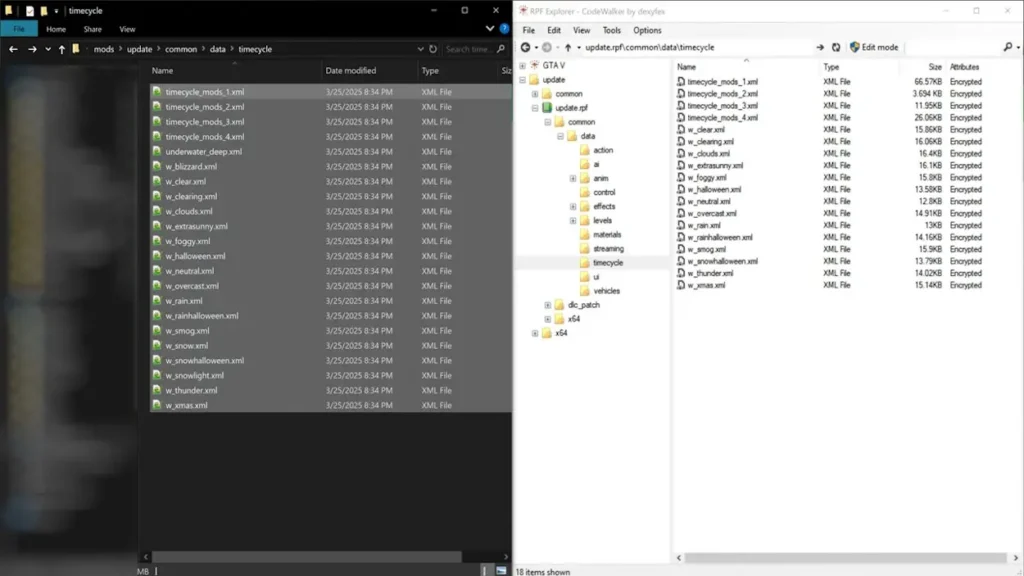
update.rpffile from the “update” folder of your game files intomods\update. - Download the VisualV files from the official source.
- Run CodeWalker and move the files from the “manual installation” folder to their respective directories inside
modsupdateupdate.rpf.
GTA 5 Gameplay Mods
Gameplay mods have been a part of Grand Theft Auto V for years and have evolved in various ways. In this section, we’ll showcase the process of installing two of the most popular GTA V gameplay mods: FiveM and Chaos.
Install FiveM Mod on GTA 5
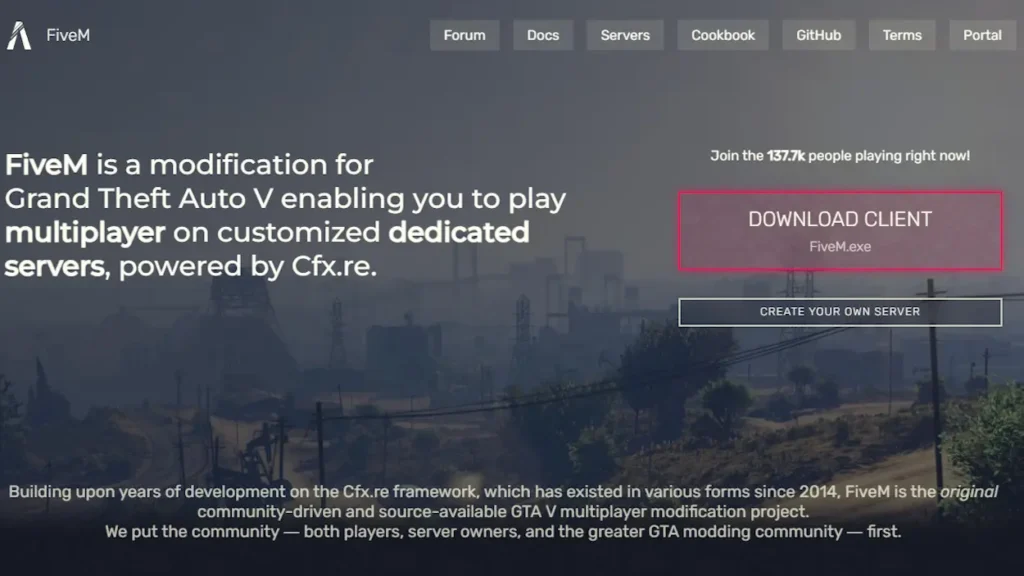
You must download the FiveM client from the official FiveM website in order to use mods. Most mods aren’t installed directly into your game files because they are server-sided. Instead, you’ll automatically download and use the mods specific to the GTA 5 RP server you join. Some mods you install locally are client-side, meaning they only affect your personal gaming experience.
Use caution, as some servers may prohibit or limit the use of certain mods. It’s always essential to verify the FiveM server’s rules regarding permitted client-side changes. With that said, here is how you can install FiveM mods in GTA 5:
- Run the Setup: Double-click the downloaded setup file after the download is complete.
- Allow Updates (if needed): The installer may check for updates. Make sure your PC is connected to the internet to allow this process to finish.
- Locate GTA5.exe: When prompted, navigate to your GTA5.exe file. This is typically found in your Grand Theft Auto V game directory (e.g.,
C:\Program Files\Rockstar Games\Grand Theft Auto V). Navigate to the correct folder and select the GTA5.exe executable file. - Verify and Update Game Data: FiveM will verify your game files and may download any necessary updates. When prompted, allow these processes to continue.
- Download Additional Files: A new download screen may appear for additional FiveM files. Allow these to download completely.
- Sign in to Rockstar Social Club: When the Rockstar Social Club sign-in window appears, enter your credentials to log in.
- Launch FiveM: Once the installation and sign-in are complete, you can open the FiveM application to explore custom GTA 5 servers and mods.
Install Chaos Mod in GTA V
Unlike the FiveM mod, the Chaos mod integrates directly with your main game. This is why you must install Script Hook V first. You can follow the guide at the top of this article to install it. Before starting the process, go to the GTA5-Mods website and download the Chaos Mod V file. Once you’ve downloaded it, follow the step-by-step process below to install Chaos Mod:
- Extract the Files: First, extract the downloaded
.zipfile into a new folder. - Locate the Game Directory: Find your Grand Theft Auto 5 installation directory. This is usually located in one of the following locations, depending on where you purchased the game (e.g.,
C:\Program Files\Rockstar Games\Grand Theft Auto V). - Copy the Files: Copy and paste the components from your new folder into the GTA 5 directory.
- Check for the ‘ChaosMod.asi’ File: Ensure that the
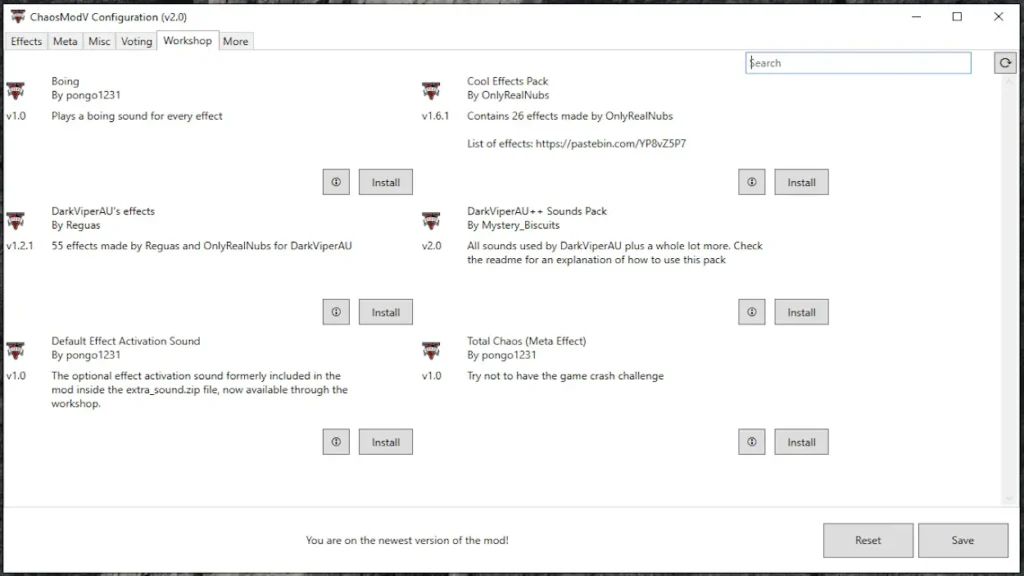
ChaosMod.asifile is present in the folder. Once confirmed, run GTA 5, and you’re good to go. - Customize the Mod: You can open the ChaosModV config file to adjust which mods you want active in the game.
Will Modding GTA 5 Lead to a Ban on PC?
Yes and no. In 2015, Rockstar officially stated, “We have always appreciated the creative efforts of the PC modding community… no one has been banned for using single-player modifications, and you should not worry about being banned or being relegated to the cheater pool just for using single-player PC mods.”
This means that if you are using GTA 5 mods in single-player mode, it should not get you banned. However, that doesn’t mean you can use the same trainers or other mods in GTA Online. Rockstar also uses duplicate GTA files for the online version, which ultimately keeps you vulnerable to cheater pool bans.
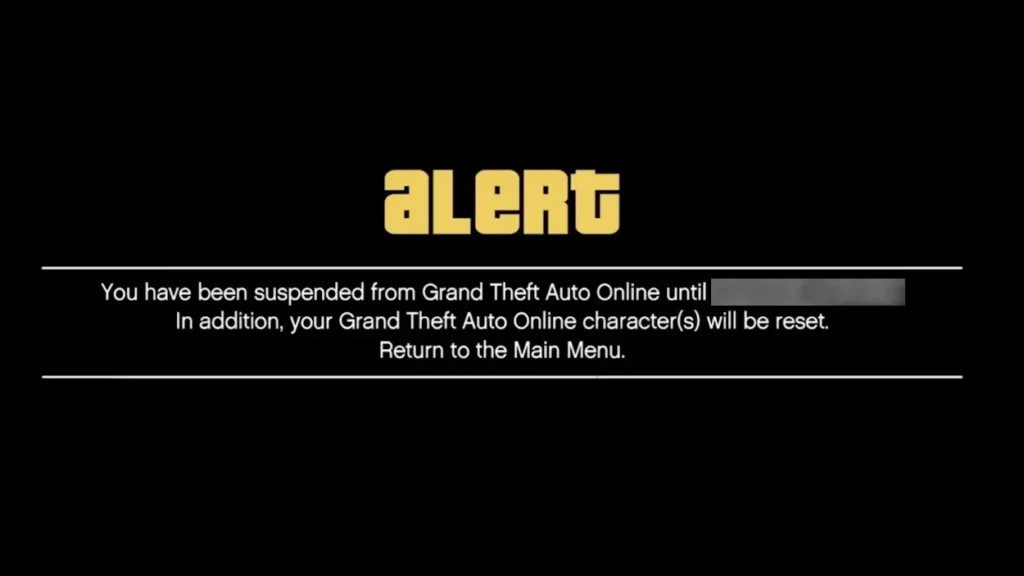
As mentioned earlier in this guide, you should always check whether a mod is legal. Additionally, always download and install mods from legitimate sources. You wouldn’t want malware to take over your PC just like you would take over a bank in the game.
Installing a GTA 5 Mod Menu can get you banned if it isn’t legal. Before using a GTA 5 Mod Menu, it’s important to understand which type you’re using. Mod menus come in two types: Single-player mod menus (trainers) and online mod menus.
In simple terms, the mods we suggested earlier automatically download the Mod Menu into your GTA V. While these Mod Menus can be fun, we strongly recommend sticking to those made for single-player GTA 5.
That wraps up our complete GTA 5 mod guide. Have you tried modding Grand Theft Auto 5 yet? Which mod is your favorite? Let us know in the comments below!


