
Copying and pasting is one of the most basic tasks you’ll perform on a Chromebook. Just like Windows and other platforms, ChromeOS offers multiple ways to execute copy-and-paste actions. In addition to the usual shortcuts, ChromeOS includes a built-in clipboard tool that can store up to five items at once. In this guide, we’ll explore all the methods you can use to copy and paste on your Chromebook.
Copy on Chromebook
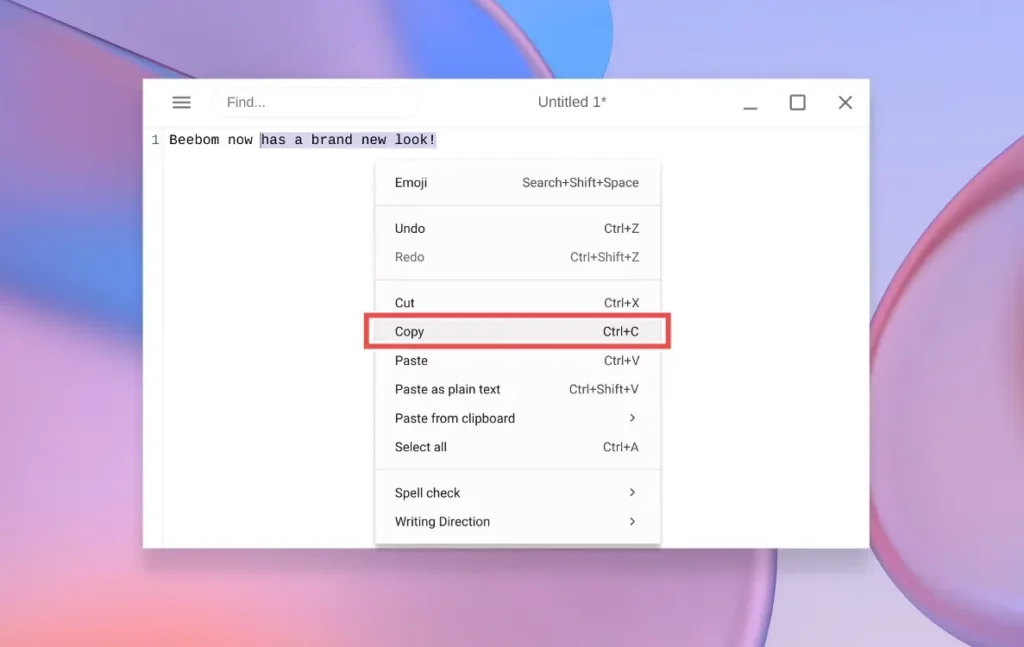
Copying on ChromeOS works the same way as it does on Windows. Simply highlight the item and press Ctrl + C to copy it. You can also use the traditional right-click menu to select the Copy option.
- Copy shortcut: Ctrl + C
- Right-click > Copy
Cut on Chromebook
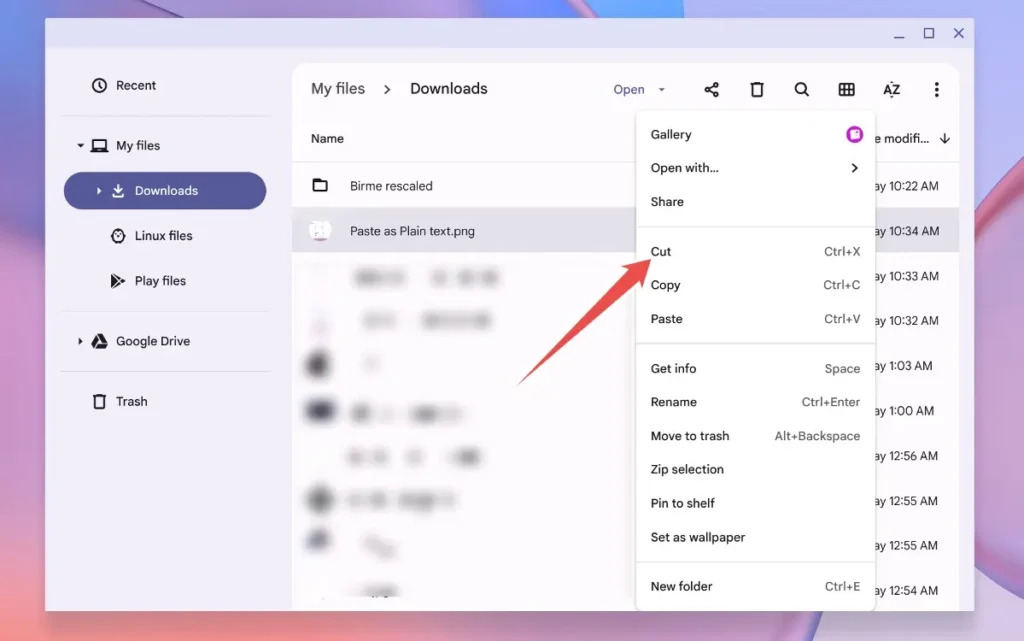
You can cut or move selected text or files by pressing Ctrl + X. You may also use the Cut option from the right-click context menu.
- Cut shortcut: Ctrl + X
- Right-click > Cut
Paste on Chromebook
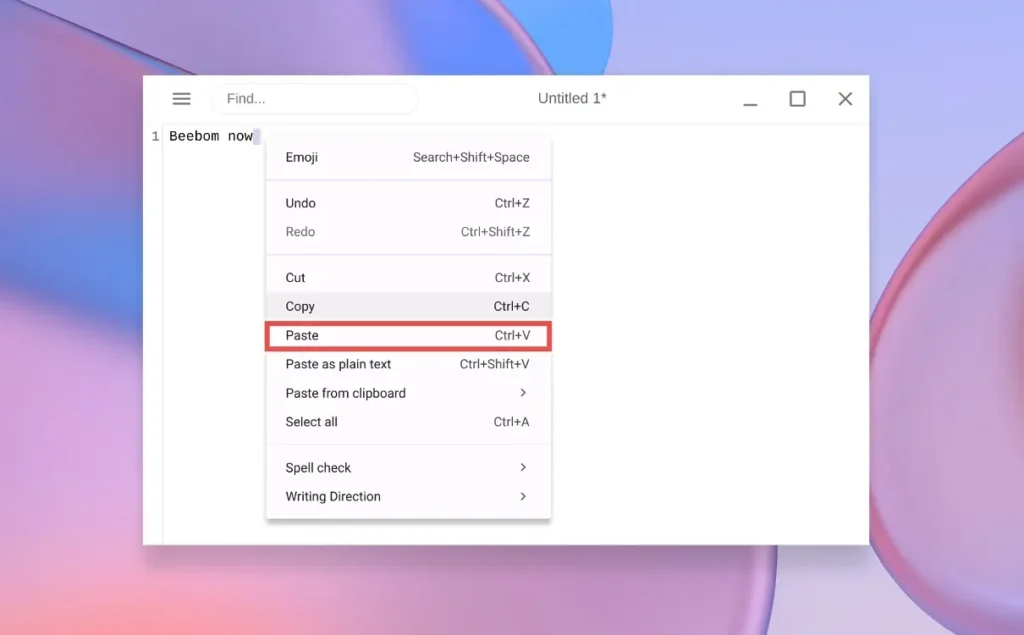
Pasting on a Chromebook also mirrors the Windows process. Press Ctrl + V to paste the copied content. Alternatively, right-click anywhere and select Paste from the menu. That’s the basic method for copying and pasting on ChromeOS.
- Paste shortcut: Ctrl + V
- Right-click > Paste
Paste Text without Formatting
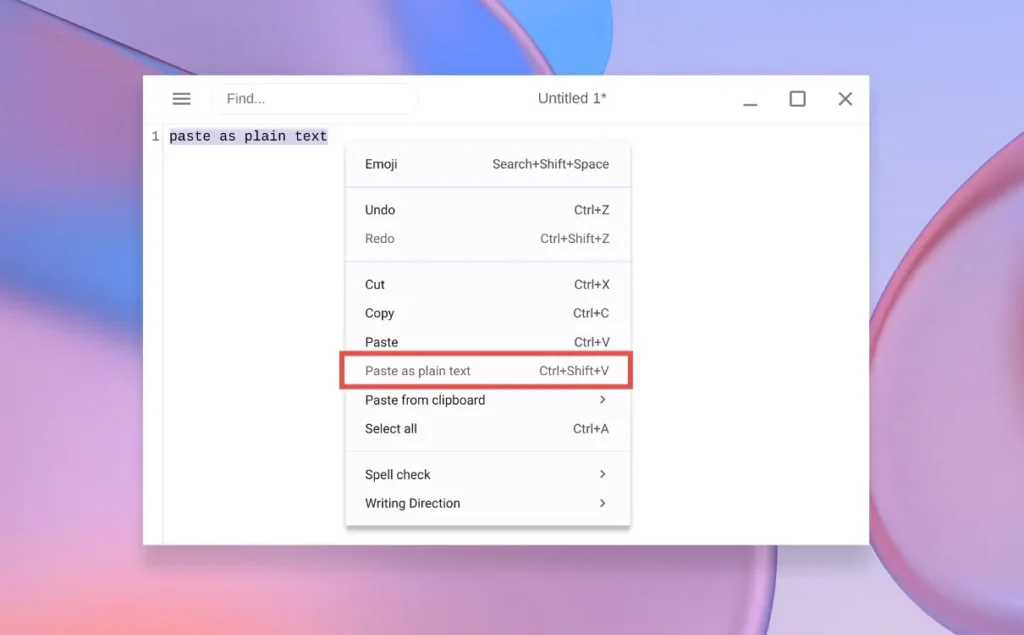
If you’re collecting information from different sources and want to insert text without carrying over fonts or styles, ChromeOS offers a shortcut for plain-text pasting.
- Paste as Plain Text shortcut: Ctrl + Shift + V
- Right-click > Paste as plain text
Copy and Paste Images on Your Chromebook
Copying images works exactly like copying text or files. Use Ctrl + C to copy an image, then press Ctrl + V to paste it into a folder or supported app. You can also right-click an image and select Copy, then right-click where you want to paste it and choose Paste.
Paste Images & Screenshots on a Chromebook
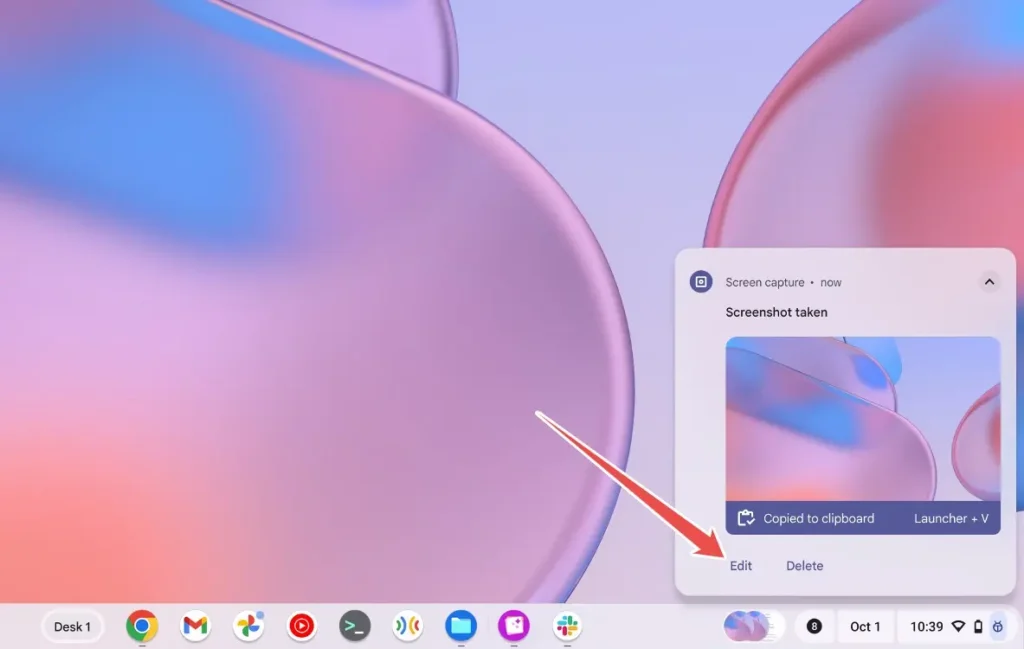
This is one of the most convenient Chromebook shortcuts. After taking a screenshot, you can immediately paste it into an image editor, Gmail’s compose window, or any compatible input field. ChromeOS automatically saves each screenshot to the clipboard, so you can paste it instantly.
- Paste Screenshot shortcut: Ctrl + V
Copy and Paste Commands on Linux Terminal
If you frequently use the Linux Terminal on your Chromebook, these shortcuts are extremely useful. To copy a command, simply highlight it with your mouse or touchpad—ChromeOS copies it automatically without requiring a shortcut.
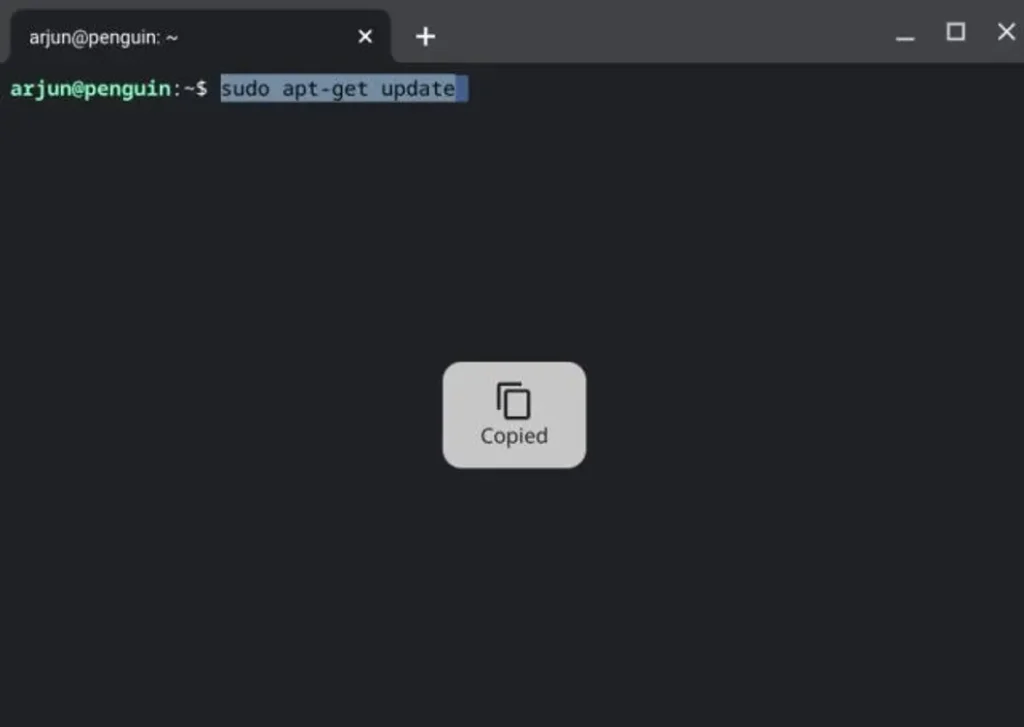
To paste, just right-click inside the Terminal and the command will appear immediately.
You can also use the standard keyboard shortcuts.
- Copy Command: Ctrl + C
- Paste Command: Ctrl + V
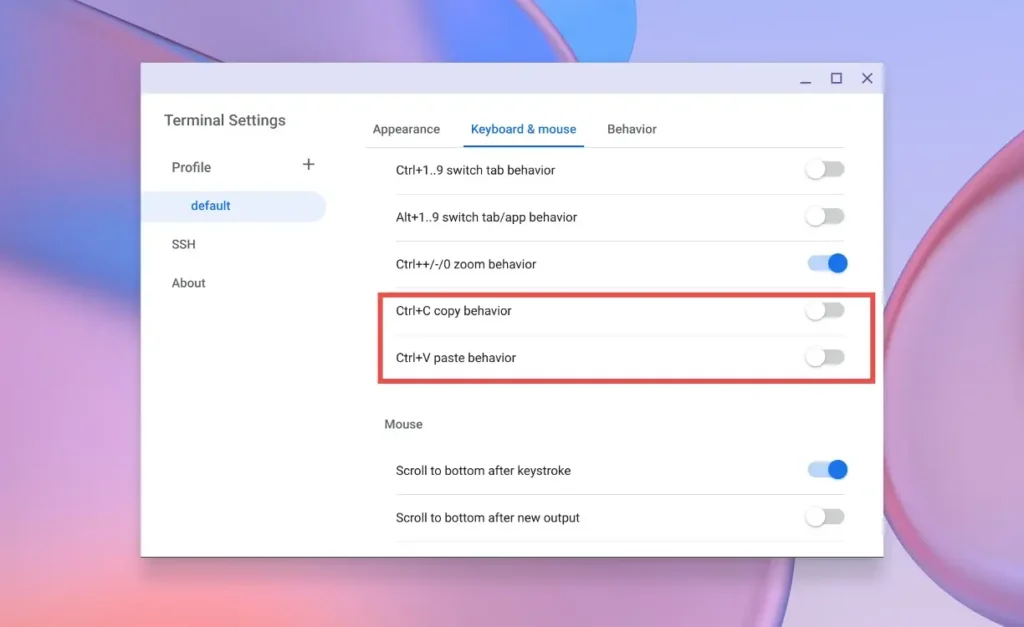
You can adjust Terminal copy-paste behavior by right-clicking inside the Terminal and navigating to Settings > Keyboard and mouse. From here, you can toggle these features on or off.
Copy and Paste Using Clipboard History
ChromeOS includes a Clipboard History tool, similar to the one on Windows, allowing you to store and paste multiple text fragments, images, links, or screenshots. Press Launcher + V to open clipboard history, choose the item you want, and hit Enter to paste it.
- Clipboard History shortcut: Launcher + V
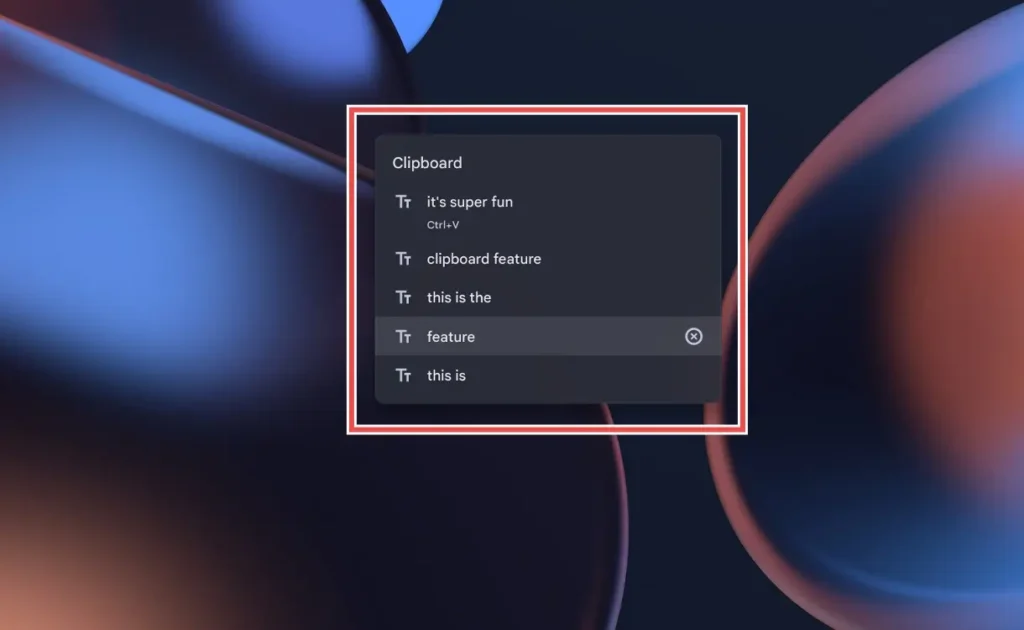
This saves time by letting you retrieve previously copied items without searching across multiple tabs or files. You can also right-click > Paste from clipboard and choose the specific item you want to paste.

These are all the available ways to copy and paste text, images, and commands on a Chromebook. What do you think about ChromeOS’s copy-paste features, and what improvements would you like Google to introduce? Share your thoughts in the comments.


